

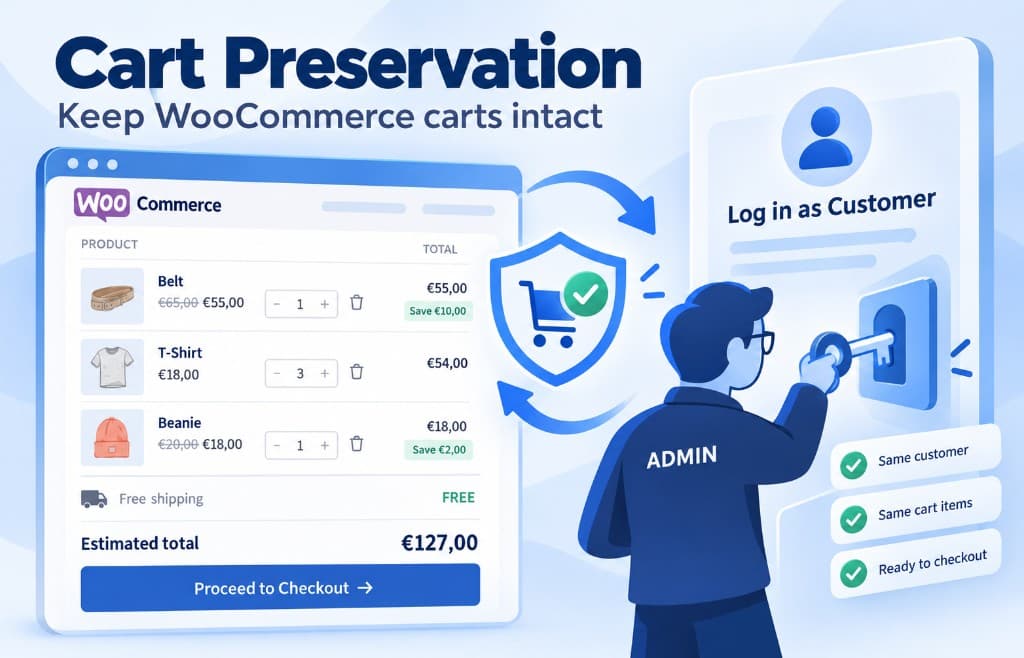
A customer asks for help. They have products in the cart, but checkout is stuck. You use Login as User to see the store as they see it. Without one setting, WooCommerce often does something unhelpful: it empties the cart.
That is what Cart Preservation fixes. When you log in as the customer, their cart stays. You can check checkout, add or remove products, then go back to your admin account. When they log in again, the same cart is still there.
👉 Read the Cart Preservation guide
The problem: the cart is emptied
Login as User lets you open a customer’s account without asking for their password. On a WooCommerce store, that is the fastest way to see the same checkout problem they have.
The catch is how WooCommerce handles the cart. By default, when you switch users, the cart can be emptied. The customer comes back to an empty basket, has to add everything again, and the support ticket takes longer.
That is frustrating for them and for you. You wanted to help. They wanted to finish the order.
What Cart Preservation does
With Preserve WooCommerce cart on switch turned on, Login as User saves the customer’s cart before you log in as them, and puts it back when you switch back.
What this means:
- ✅ The products they already chose stay in the cart
- ✅ You can check checkout with the same items they wanted to buy
- ✅ Each customer keeps their own cart
- ✅ The plugin also keeps a backup of the cart, so nothing is lost
You are helping with their real cart, not an empty one.
Can you also add products to their cart?
Yes. This is one of the most useful parts.
If you log in as the customer and add a product, they will see it in their cart when they come back. The same if you remove something. You are changing their cart, not a copy that gets deleted.
A simple example:
- The customer is not sure which product or size to buy.
- You log in as them.
- You add the right items.
- You email them a link to
/checkout/. - They open it, see the cart you prepared, and pay.
This helps them finish the order without screen sharing or long emails.
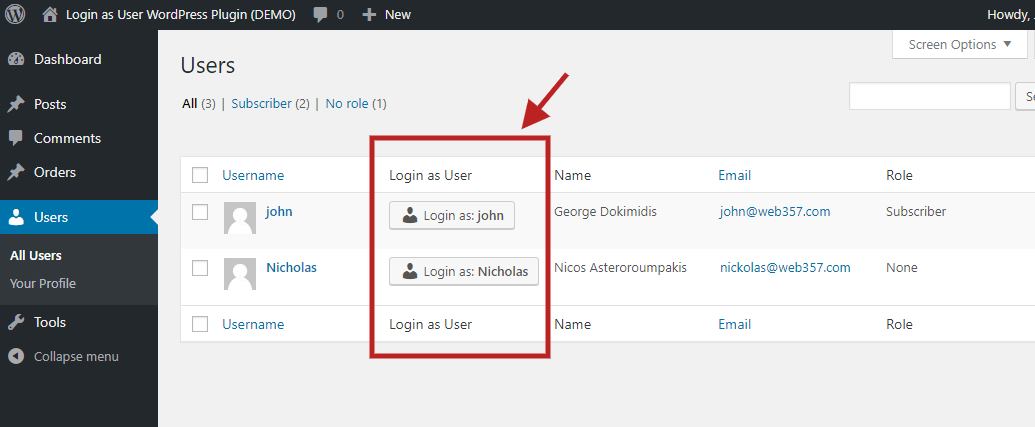
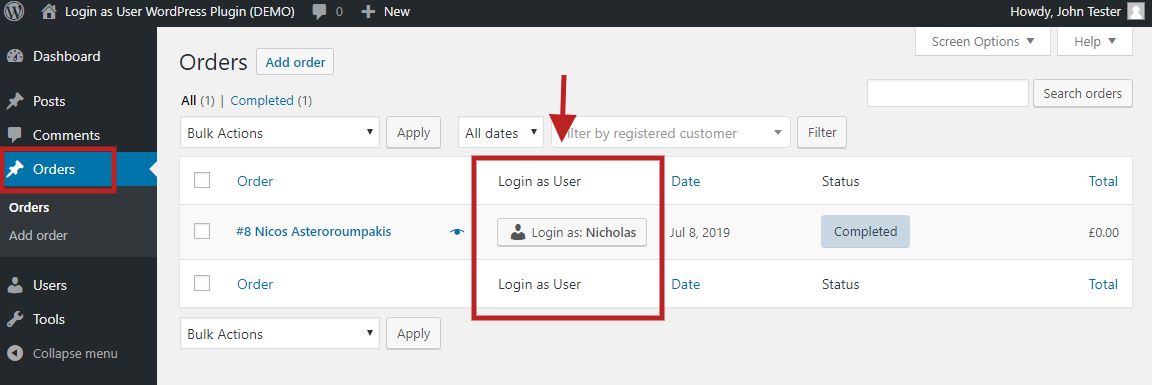
From Users → All Users, click Login as… next to the customer. In Login as User Pro, the same button also appears on WooCommerce → Orders.
How to turn Cart Preservation on
It is one checkbox.
- Go to Settings → Login as User.
- Open the Settings tab.
- Check Preserve WooCommerce cart on switch (Do not clear/forget carts during Login as User flows).
- Click Save Settings.

After that, log in as a customer as usual. When you click Go back to admin at the top of the site, their cart is still there.
👉 See the full Cart Preservation steps in the documentation
A simple way to help a customer
Here is a flow that works well on a live store:
- Turn on Preserve WooCommerce cart on switch.
- Find the customer (from Users, or from WooCommerce → Orders in Pro).
- Click Login as User.
- Open the cart or checkout and see what they see.
- Add or remove products if they asked you to.
- Click Go back to admin.
- Send them a checkout link, for example
https://yourstore.com/checkout/.
They continue from where you left off. No empty cart. No “please add those products again”.
What about coupons?
The products in the cart stay. Coupons do not. ⚠️
If you add a coupon like SUMMER10 while logged in as the customer, it will usually be gone when they log back in. WooCommerce does not keep coupons from one login to the next.
👉 The easy way is a coupon link. Some WooCommerce plugins add the coupon from the URL, for example:
https://yourstore.com/checkout/?apply_coupon=SUMMER10
When the customer opens that link, the coupon is added to the cart you already prepared. They only need to pay.
If you use special coupons often, this works well:
- Login as User prepares the cart
- A coupon link adds the discount when they click it
When this helps most
Cart Preservation is for everyday store support, not only for developers:
- A customer cannot finish checkout and already has items in the cart
- You need to check a shipping, tax or payment problem with their real products
- You want to add the right product for them and send a payment link
- You take orders by phone or email and want the customer to pay themselves
- You do not want a live store to lose carts every time staff log in as a user
On a test site, you can leave it off if you want an empty cart each time. On a live store, leave it on.
Read the documentation
This post explains the idea and a simple way to use it. The documentation has the exact setting, a WooCommerce example, and where Login as User also shows up: orders, subscriptions, MemberPress and SureCart.
👉 Cart Preservation in the Login as User documentation
👉 Full Login as User documentation
Get started
Cart Preservation is included in the free version of Login as User. Pro adds the Login as User button on WooCommerce orders and subscriptions, so you can open a customer’s view from the order itself.


Want to leave a comment?