

A customer writes in. You open WordPress and need two things: find that person, and see the site as they see it. Until now, Login as User kept its options under Settings → Login as User, and you looked for people in Users → All Users.
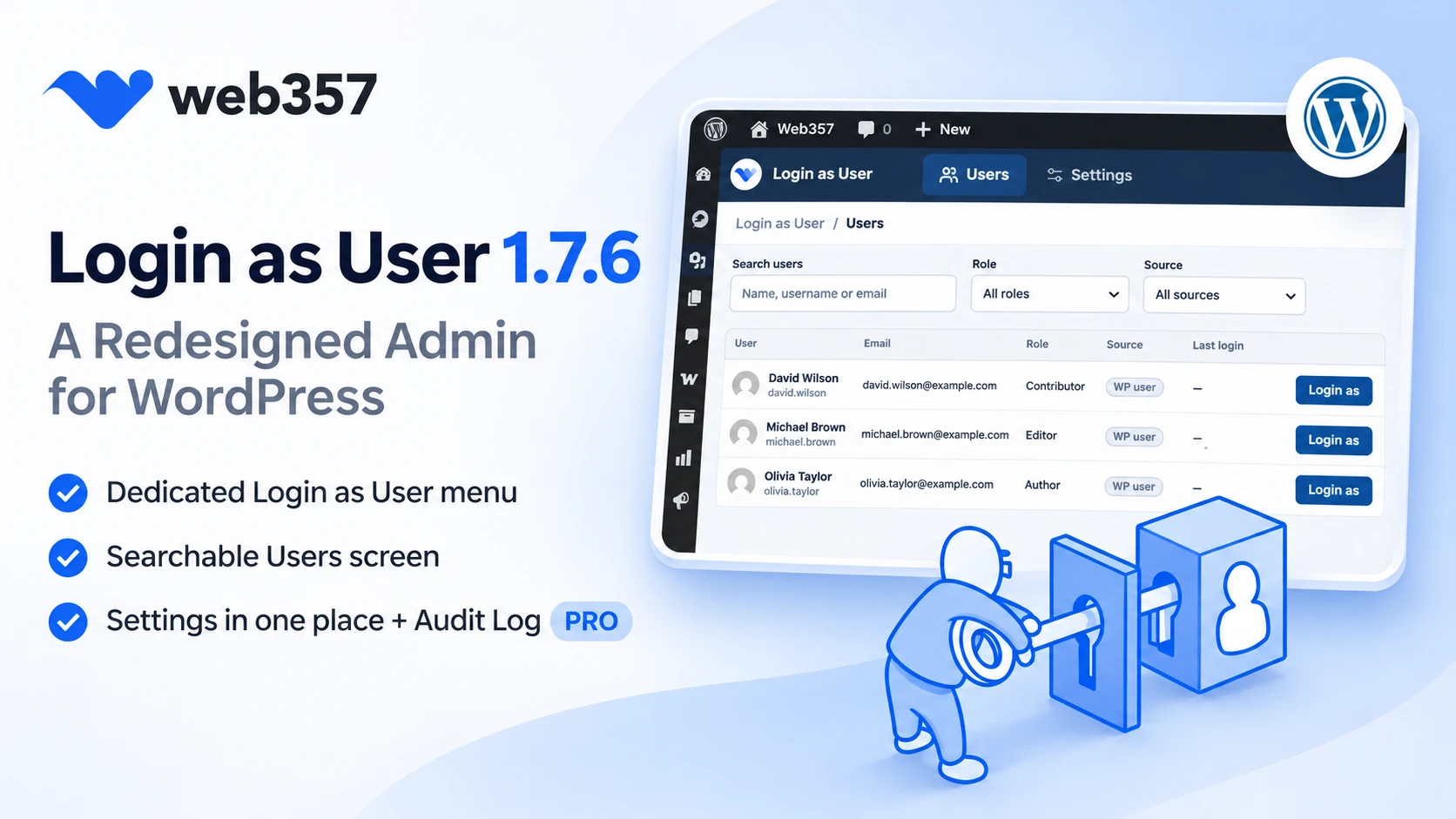
Version 1.7.6 changes how the plugin looks in your admin. It now has its own Login as User menu in the sidebar, with three screens: Users, Audit Log and Settings.
Your saved settings are kept. The buttons you already use work as before.
👉 See how the new admin panel is organized
What changed at a glance
| Before 1.7.6 | From 1.7.6 |
|---|---|
| Options under Settings → Login as User | A Login as User menu of its own in the sidebar |
| You found people in Users → All Users only | A new Users screen with search, filters and last login |
| Settings and Appearance were separate tabs | One Settings screen with six sections and one Save |
| No record of who logged in as whom | An Audit Log of every switch (PRO) |
| You had to remember on which tab an option was | Search (⌘K) finds any screen or setting by name |
The new Users screen
Go to Login as User → Users. Every user of your site is in one list, and each row has a Login as button.
- ✅ Search users matches the name, username or email as you type.
- ✅ The Role filter shows only one role, for example Customer or Shop manager.
- ✅ The Source filter shows only WooCommerce customers, WooCommerce Subscriptions subscribers, MemberPress members or SureCart customers. Each source appears while its plugin is active.
- ✅ Last login shows when the person last signed in themselves. Logging in as them does not change it.
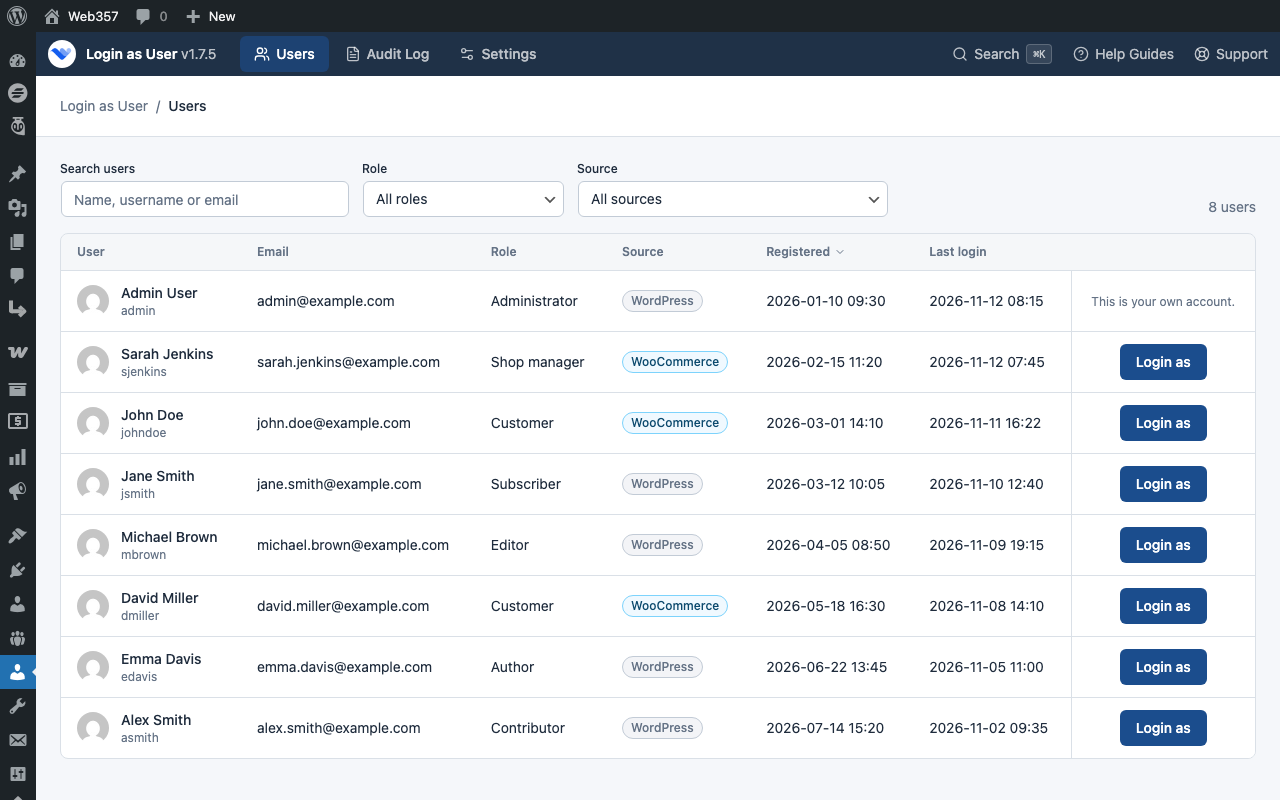
When a row has no button, it tells you why: This is your own account. or You are not allowed to log in as this user.
Click Login as, and you land on the front end of the site as that person. Click Go back to admin in the bar to return to your own account.
Settings, in one screen
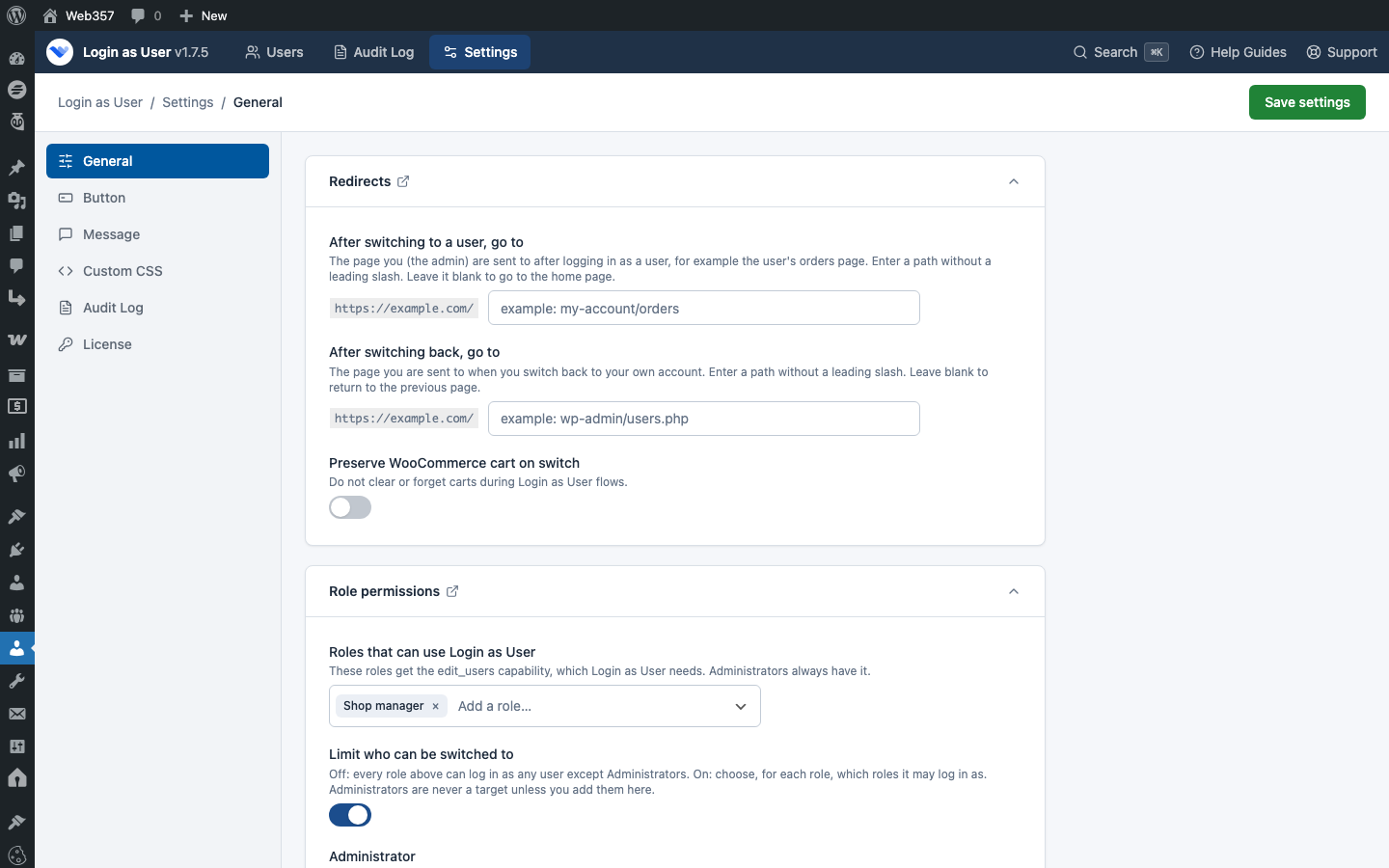
Go to Login as User → Settings. The sections are listed on the left:
- General: where you land after switching and after switching back, WooCommerce cart preservation, and role permissions (PRO).
- Button: the text on the Login as button, and List Appearance (PRO).
- Message: the bar people see on the front end while switched.
- Custom CSS (PRO).
- Audit Log (PRO): what the log stores and for how long.
- License (PRO): your license key for automatic updates.
Change what you need in several sections, then click Save settings at the top right once. All sections save together.
Cannot find an option? Click Search in the top bar, or press ⌘K on a Mac (Ctrl+K on Windows), and type its name. It opens the right section.
Do you have the old Settings → Login as User page bookmarked? It still works. It sends you to the new Settings screen, with your values in place.
👉 Read where each setting lives now
New in PRO: the Audit Log
"Who logged in as this customer last week?" Until now, the plugin could not answer that.
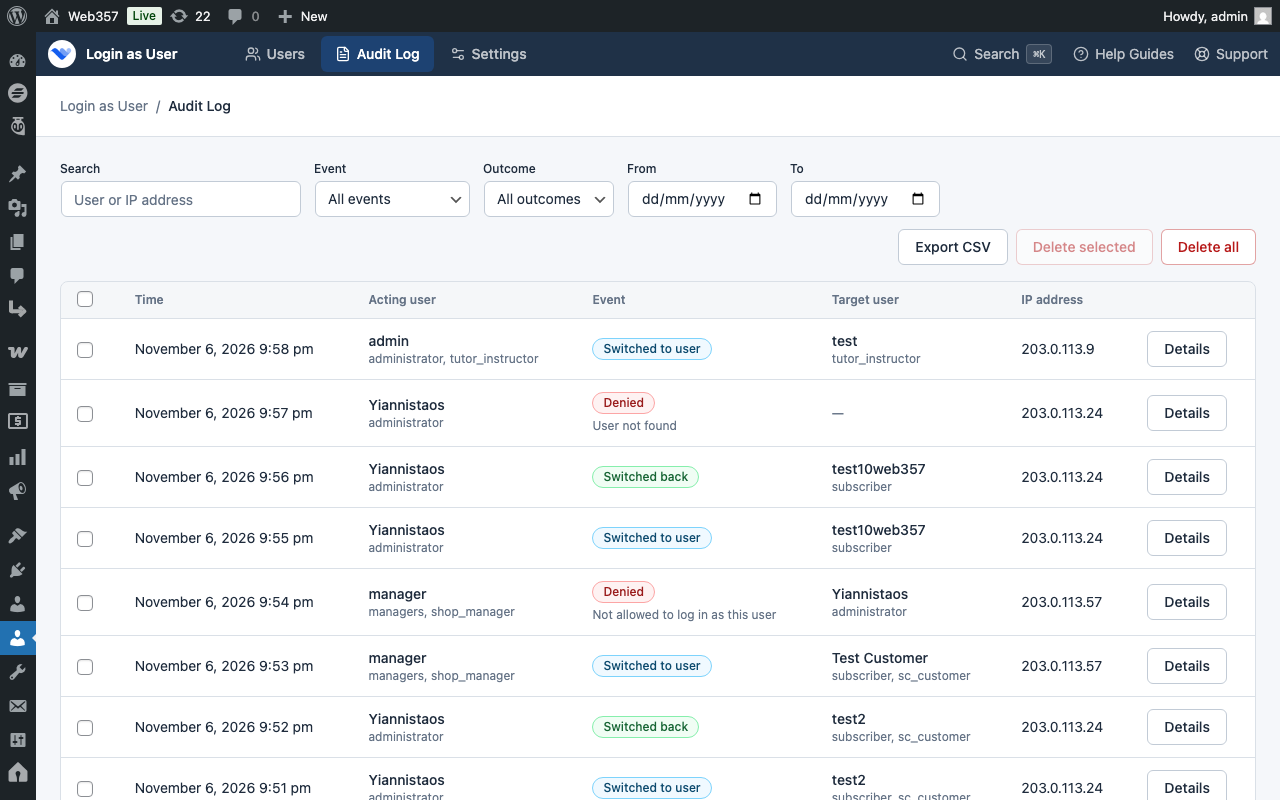
Go to Login as User → Audit Log. Every switch, every switch back and every refused attempt is recorded, with the date, both users and their roles, and the IP address.
- ✅ Filter by event, outcome and date, or search a user or an IP address.
- ✅ Click Details to see every field of an entry, including the browser.
- ✅ Export CSV downloads the entries that match your filters.
- ✅ Old entries are deleted after 90 days. You can change that, or keep them forever, under Settings → Audit Log.
- ✅ You can stop storing IP addresses, or keep only part of each one.
What stays the same
Apart from the settings page, nothing you used before has moved:
- The Login as User column on Users → All Users.
- The Login as button at the top of the Edit User screen.
- The buttons on MemberPress lists, and in PRO on WooCommerce orders, WooCommerce Subscriptions and SureCart.
- The bar on the front end while you are switched. Its button now reads Go back to admin in both the full bar and the small corner view.
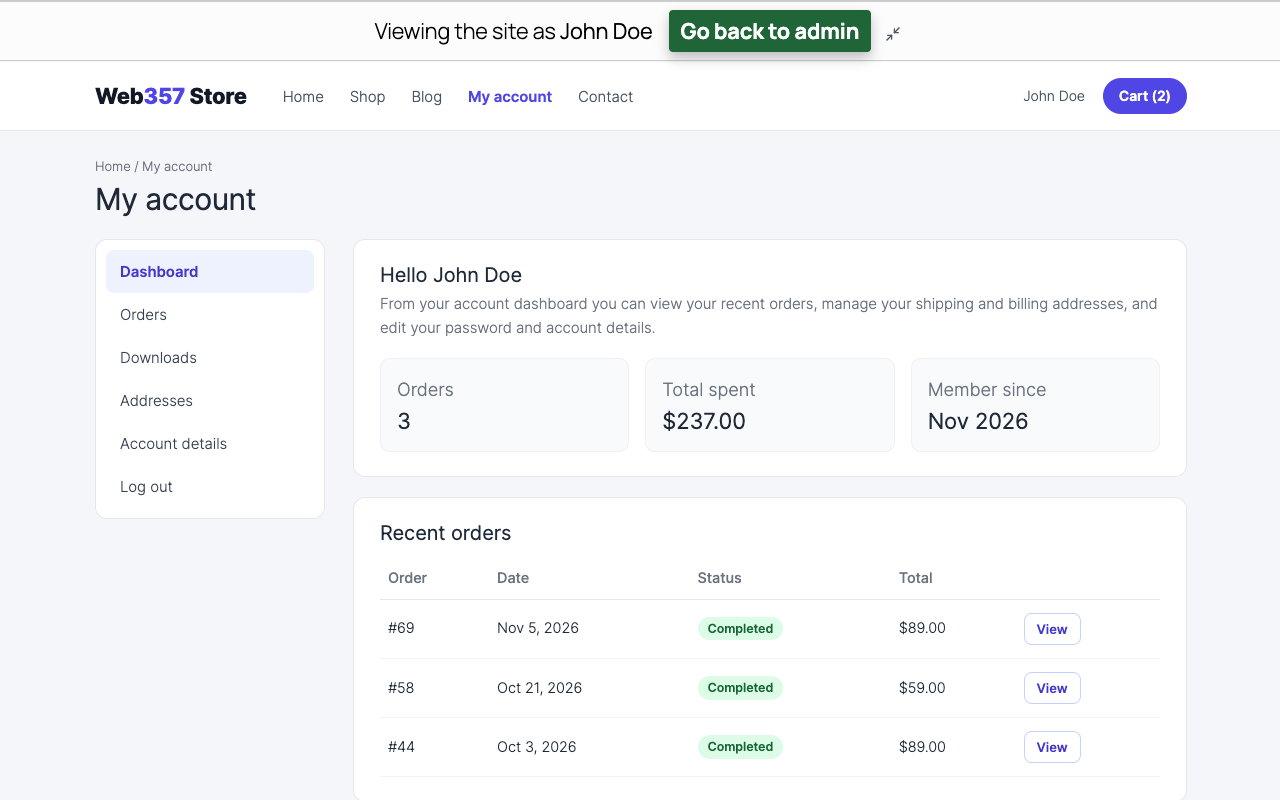
1.7.6 also fixes the Login as User column on the latest SureCart, where the Customers and Orders lists were rebuilt (PRO). And Preserve WooCommerce cart on switch works as before. You find it under Settings → General.
Who sees which screen
Administrators see all three screens: Users, Audit Log and Settings.
Other roles that you allow to use Login as User, for example a Shop manager, see only the Users screen. They can help customers without seeing your settings or the log. In PRO you choose those roles, and which roles they may log in as, under Role Management and Permissions.
Free or PRO?
The new Users screen, the redirect, cart, button and message settings, and all switching are Free.
PRO adds the Audit Log, role permissions, List Appearance, Custom CSS, the Registered column on the Users screen, and the buttons on WooCommerce, WooCommerce Subscriptions and SureCart. In the free version, PRO cards show as a locked preview, so you can see what each one does before you upgrade.
On the free Users screen, SureCart customers and WooCommerce Subscriptions subscribers show a PRO label instead of Login as. You can still log in as them from Users → All Users.
How to update
- Free version: go to Dashboard → Updates, or click Update now under Login as User in Plugins → Installed Plugins.
- PRO version: with your license key saved under Login as User → Settings → License, the update shows in the same places. You can also download the latest zip from your Web357 account.
Every change in this release is listed in the Login as User changelog.
Open Login as User → Users after you update and log in as your first user from the new screen. New to the plugin? Start with Login as User.


Want to leave a comment?